
READ. SEARCH. REVISIT.
YouTube Transcript
Read, search and keep the words.
Read a video's existing captions, search for a passage and revisit its timestamp. Copy the transcript or download the original subtitles as TXT, SRT or VTT.

Find a passage. Keep its context.
The best ideas often start with a simple question.
Learning is about making connections between ideas.
Take a moment to reflect on what you've learned.
Choose a track.
Find your passage.
Read the subtitles already available for a video. Choose a track, search for a word or phrase and use its timestamp to return to the original context.
- Select from the video’s available subtitle languages
- Search the transcript text for a word or phrase
- Revisit the video at a subtitle timestamp

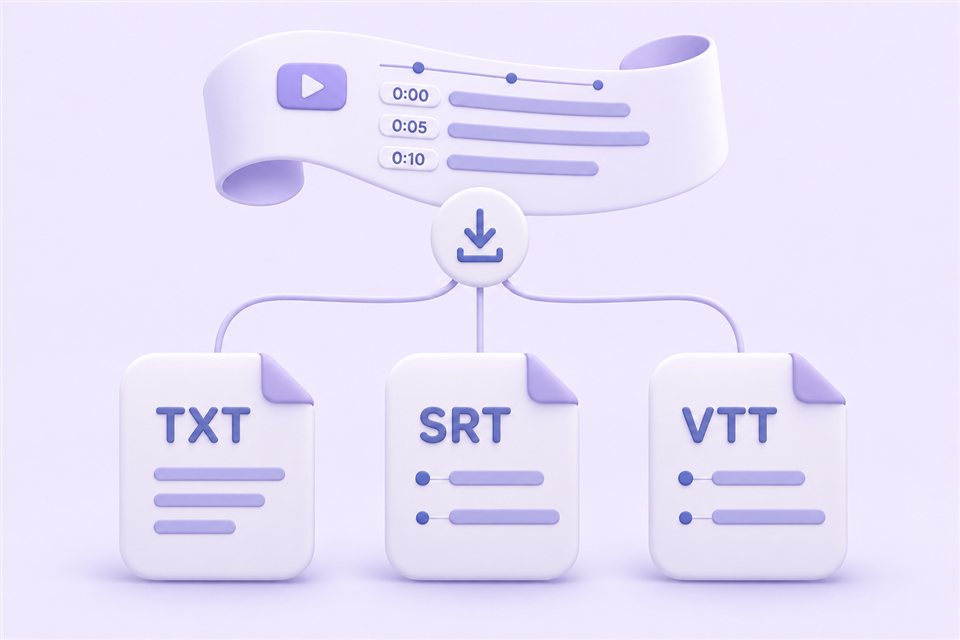
Copy the text.
Keep the timing.
Copy the transcript to your notes, or download the original subtitles in a format that fits your task. Reading, searching, copying and exporting subtitles do not use AI credits.
- TXT
- Plain text for reading and keeping a reference.
- SRT
- SubRip subtitles with numbered cues and timing.
- VTT
- WebVTT subtitles with cue timing.
Downloads preserve the selected original subtitle track. They are not translated subtitles or AI summaries.
Your transcript, in three steps.
Free with Google sign-in · No AI credits required
- 01
Paste a video link
Use a public YouTube video with accessible existing captions. Paste its URL into the input above.
- 02
Sign in and choose a track
Sign in with Google, load the video and select one of its available subtitle tracks.
- 03
Search, copy or download
Find a passage, revisit its timestamp, copy the text or download original subtitles as TXT, SRT or VTT.
YouTube transcript FAQ
Is the YouTube transcript tool free, and do I need to sign in?
Sign in with Google to read, search, copy and download available subtitles for free. These subtitle operations do not use AI credits. Generating an AI summary, key points or script is a separate feature that uses daily credits.
Which videos work, and can I use a video without captions?
Use public YouTube videos with accessible existing subtitles, including auto-generated captions. Videos without captions are not supported. Private, removed or restricted videos may be unavailable. This tool does not transcribe audio or accept uploads.
Which subtitle languages are available? Does this translate them?
You can choose from subtitle tracks available for the video. The tool reads the selected track and preserves its original language. It does not translate subtitles or create a missing language track.
What is the difference between TXT, SRT and VTT?
TXT is plain text for reading. SRT and VTT are subtitle formats that preserve cue timing. Downloads contain the selected original subtitles, not an AI summary.
How do transcript search and timestamps work?
Load a subtitle track, then enter a word or phrase in the transcript search field to find matching text. Select a subtitle timestamp to revisit that moment in the video. Search works on the caption text; it is not a semantic question-answering tool.
How accurate is the transcript?
The transcript comes from the selected existing subtitle track. Creator-provided and auto-generated captions can contain errors or omit context. Check important names, facts and quotes against the original video before using them.
Ready to read your video?
Paste a public YouTube video link with accessible captions to open it in your workspace.
Get transcript Free with Google sign-in · No AI credits required