
GUIDE / VIDEO LEARNING
How to Summarize a YouTube Video and Check the Key Takeaways
A practical workflow for choosing captions, generating a YouTube summary, checking important claims against the source, and keeping useful notes.
You have a long interview in your Watch Later list and one question you want it to answer. Reading a summary can help you decide which parts deserve attention. If you plan to quote the speaker or use a claim in your own work, you still need to check the source.
YTAIKit's YouTube Video Summarizer works from a video's accessible existing captions. Paste a link, sign in with Google, choose a subtitle track and output language, then generate a summary. You can read the transcript alongside the result, search for a detail, and return to the video through transcript timestamps.
The useful part is the connection between those actions: get an overview, find the passages that matter, and check what was actually said. Here is a practical way to work through that process.
Start with a question, not just a link
Before generating anything, decide what you want from the video. Are you checking whether a lecture covers your topic? Collecting the main arguments from an interview? Looking for the explanation behind a particular recommendation?
Write that question in your notes. It gives you a way to judge the result afterward. A summary can be fluent and still leave out the detail you needed. If your question remains unanswered, search the transcript or watch the relevant section instead of assuming the missing information was never discussed.
This is a reading method, not a custom-prompt feature. The current workspace lets you choose Summary, Key points, or Script and an output language; it does not require you to enter a separate instruction for each video.
Check whether the video is a suitable source
A caption-based summarizer is useful for material whose substance is spoken: a lecture, interview, discussion, or narrated explanation. It can organize those words into a shorter account, but it cannot recover information that never appears in the captions.
That matters for a software demonstration where a crucial setting is shown silently, or a presentation where the speaker says only "as you can see here." The chart, button, or movement may be essential. Keep the video available and watch those sections; do not treat the summary as a record of everything visible on screen.
YTAIKit requires accessible existing subtitles, including auto-generated captions. It does not accept file uploads or transcribe the audio of videos without captions. Private, removed, or restricted videos may also be unavailable.
Even when a subtitle track loads successfully, inspect it. YouTube's automatic-caption guidance notes that speech recognition can misrepresent words because of pronunciation, accents, dialects, and background noise. A misspelled name or incorrect number can then carry into a summary.
Generate your first summary with YTAIKit
1. Paste the video link and sign in
Start at the YouTube Video Summarizer and paste the individual video's URL. Use Summarize a video to continue to the workspace. Google sign-in is required to use the workspace, including its transcript features.
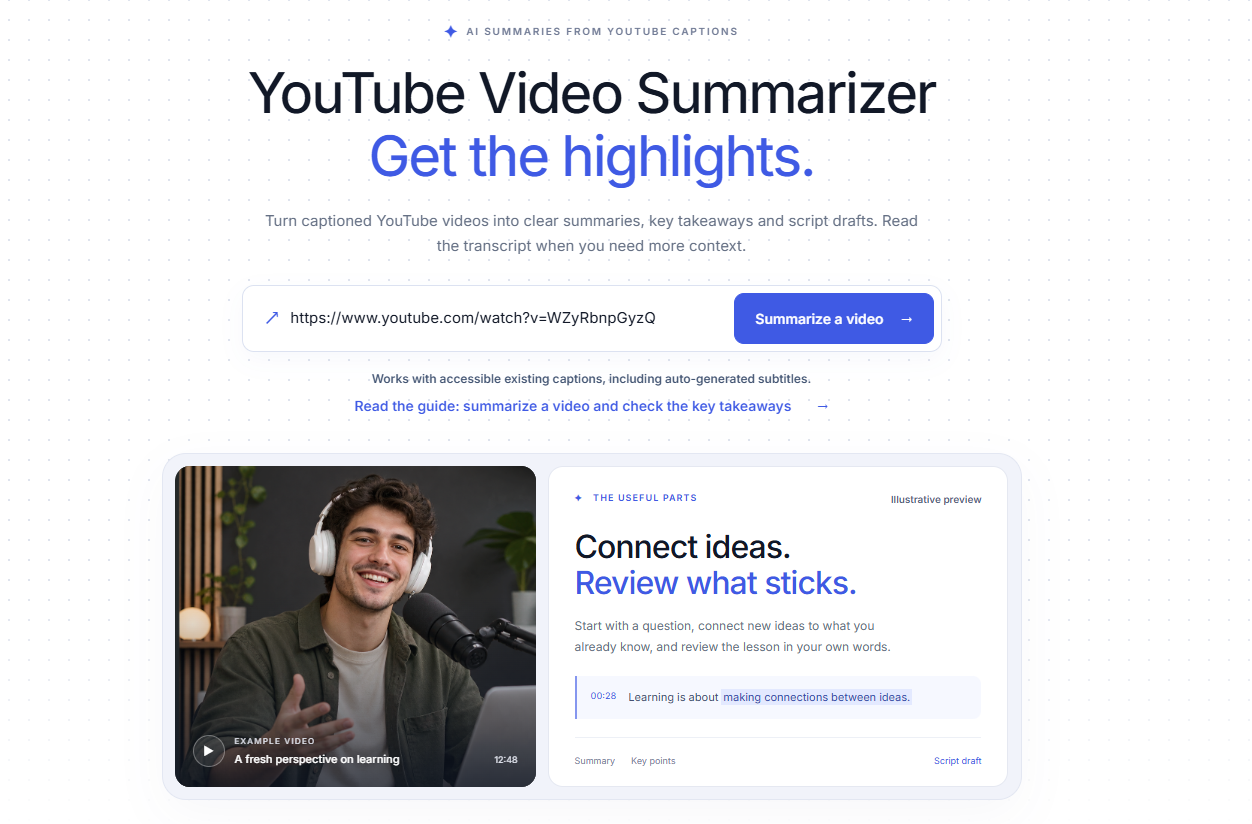
Start with the video's link. The homepage preview below the input is illustrative, not the Kennedy summary. Select any screenshot to view it at full size.
Once the source is loaded, check the title and thumbnail. When copying links from a playlist or a feed, it is easy to select a different video from the one you intended. Confirm the source before spending a generation credit.
2. Select and inspect the subtitle track
Choose one of the available subtitle tracks. Read a few passages and compare unfamiliar terms with the recording. For an interview, check that you can follow who is speaking; captions may not label speakers clearly.
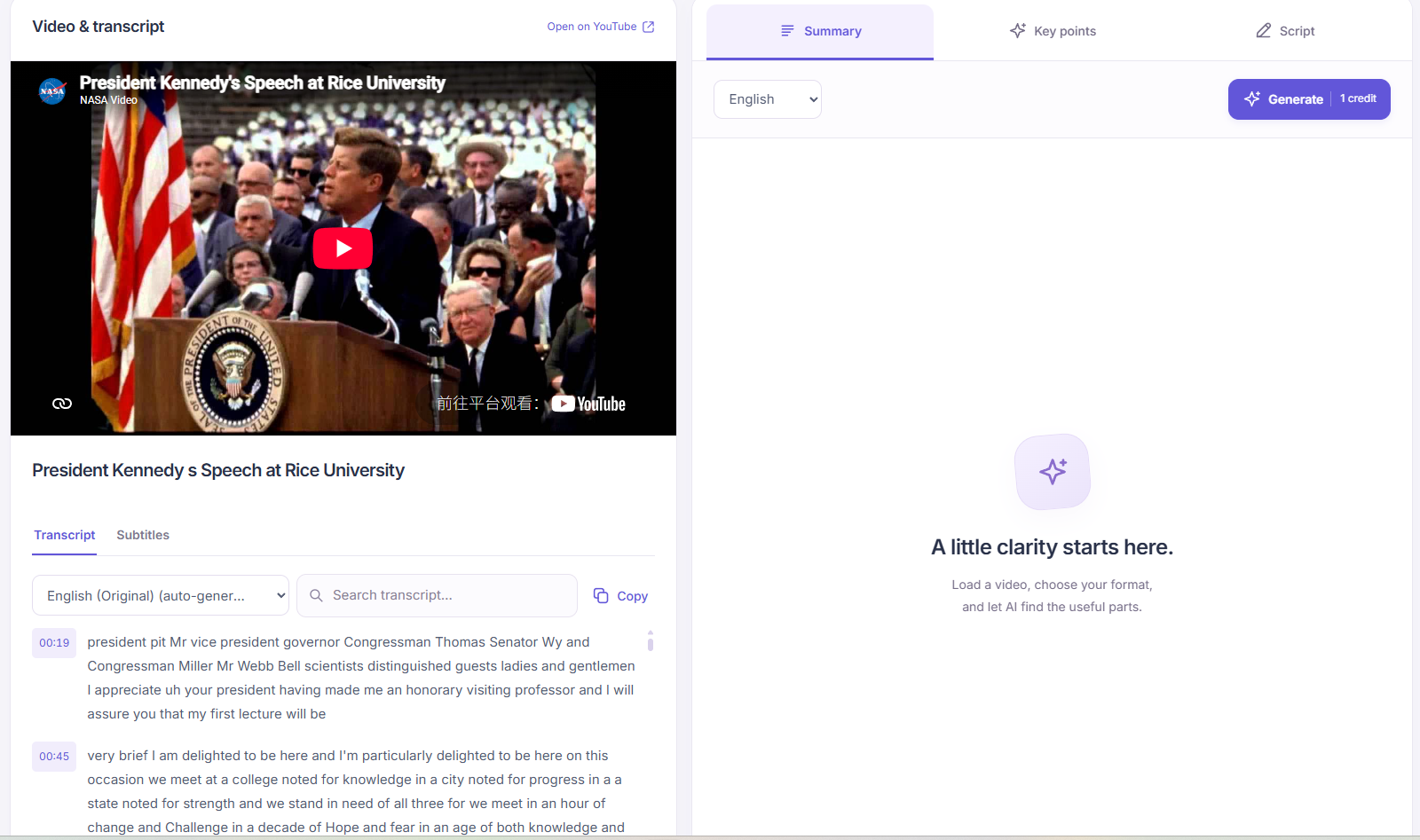
The source track shown here is auto-generated English. Summary and English output are selected; Generate costs one credit.
The subtitle language and output language serve different purposes. The first selects the source text. The second chooses whether the AI writes the result in English or Simplified Chinese. Generating a Chinese summary does not translate the original subtitle download into Chinese.
If a track is clearly incomplete or difficult to understand, inspect another available track. The tool cannot reliably compensate for large gaps in its source. Loading a different language also does not guarantee a more accurate transcript.
3. Choose Summary and generate
Select Summary, choose the output language, then select Generate. Each summary generation uses one daily AI credit. Reading, searching, copying, and downloading existing subtitles do not consume AI credits.
Allow the task to finish before evaluating the result. A long transcript may need more processing than a short one, and preparation or generation can fail. There is no fixed completion time that applies to every video. A failed generation task has its credit returned.
Read the completed result for its main topic, supporting ideas, and conclusion. Then return to the question you wrote down: did this overview help answer it, and which details still need checking?
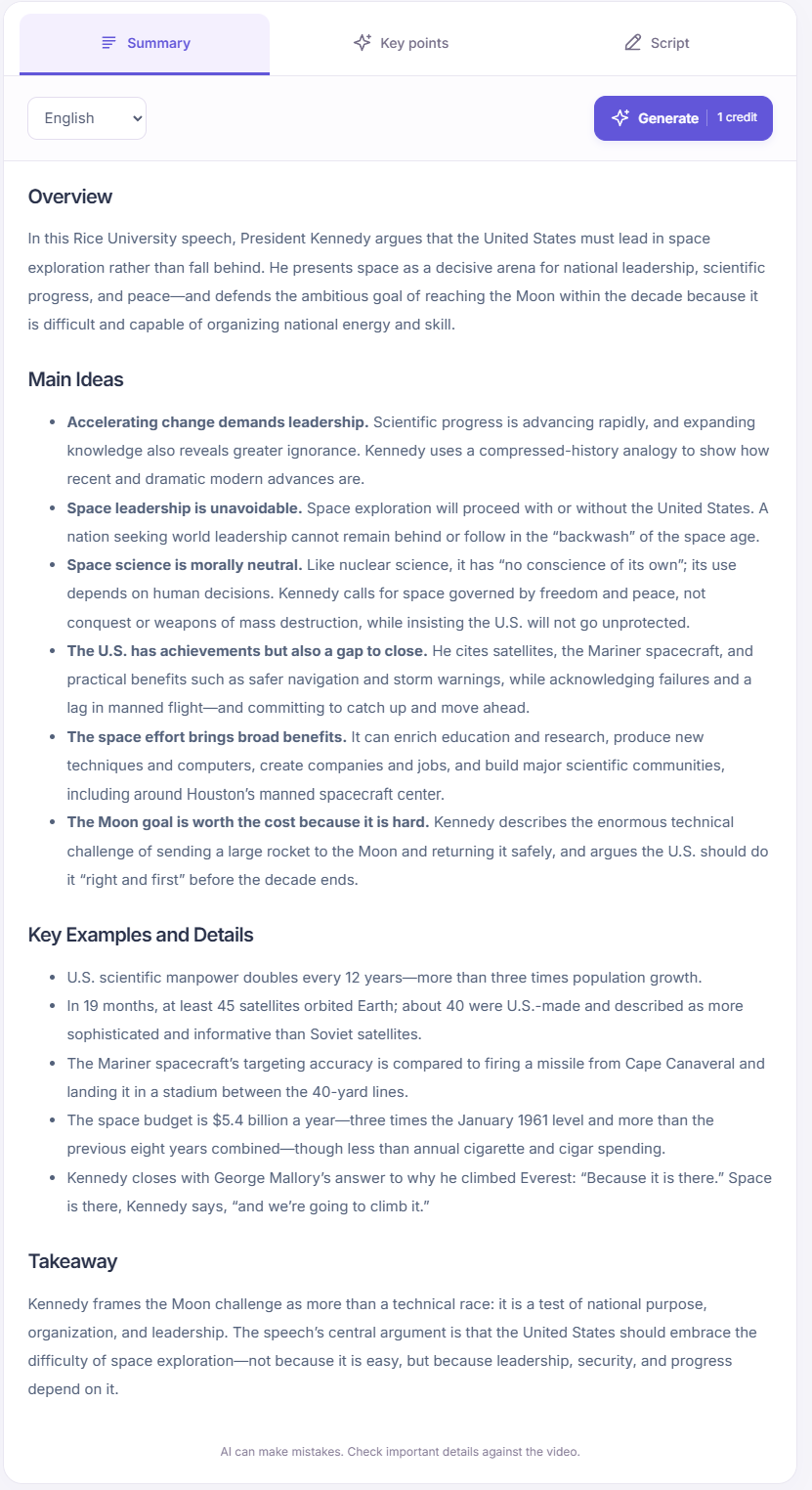
The generated result organizes the speech into an overview, main ideas, examples, and a takeaway. This is one actual result, not a fixed template guaranteed for every video.
Example: reading the Kennedy speech summary critically
The screenshots use NASA's upload of President Kennedy's Speech at Rice University. The source recording is identified as public domain by the Kennedy Library. The workflow shown uses an auto-generated English subtitle track and an English summary.
The overview connects the speech with national leadership, scientific progress, peace, and reaching the Moon within the decade. That gives a reader several themes to follow back into the speech rather than only its best-known line.
One generated heading deserves a closer look: "The Moon goal is worth the cost because it is hard." It is a compressed interpretation, not a direct quotation from Kennedy. Read it alongside the overview and surrounding points, which also discuss leadership and the broader benefits of space exploration. Before using that heading in your own writing, check how the speech connects difficulty, cost, and national goals.
For that check, search the transcript for moon, hard, or cost, then revisit the matching passages with their timestamps. Compare the surrounding argument, not just the famous phrase. The screenshots document the loaded source and generated result; they do not show a completed passage-by-passage verification. Keep that distinction when evaluating this example or recording your own review.
Choose the output that matches your next task
You do not need to generate every output for every video. Each additional generation uses another credit. Choose the one that helps with the work you are about to do.
| Output | Use it when you need | What to remember |
|---|---|---|
| Transcript | Exact wording, a searchable passage, or original subtitles | Captions can contain recognition errors; compare important quotations with the recording |
| Summary | An organized overview of the video's main ideas | Details and qualifications may be compressed or omitted |
| Key points | Focused items for review or a list of takeaways | Bullet points are still generated interpretations, not necessarily the speaker's exact words |
| Script | A spoken draft to develop in your own work | Review the facts, rewrite for your audience, and add your own perspective; it is not a transcript |
For a quick decision about whether to watch, a summary may be enough. For revision, key points may be easier to revisit. For a quotation, go back to the transcript and recording. A script draft belongs in a separate editing process rather than inside quotation marks attributed to the original speaker.
On smaller screens, swipe the tables sideways to compare all columns.
Follow one important claim back to the source
Choose a statement you might actually use: a recommendation, a statistic, or an explanation central to your question. Start there rather than treating every sentence in the summary as equally important.
Search the transcript for a distinctive word, name, or phrase from that statement. The summary may paraphrase the speaker, so an exact sentence search might find nothing. Try a shorter term or another word for the same idea.
Read the surrounding transcript lines, not just the matching phrase. Then use the transcript timestamp to revisit the video. Listen to the sentence before and after the claim. In an interview, check whether the speaker is endorsing an idea, describing someone else's position, or asking a question.
Pay particular attention to small words. If a recommendation applies only to beginners, that condition matters. If the speaker says an approach "may help," a summary that says it "will work" has changed the strength of the claim. Keep the qualification in your own notes.
Check examples in the same way. A speaker may tell one story to illustrate a point without presenting it as general evidence. A short summary can make that story sound like a broad conclusion. Watch the surrounding explanation before relying on it.
If the result is misleading, correct your copied notes and keep the source location beside the correction. Generating again is an option, but another output is not a substitute for checking the passage. When you cannot establish what the speaker meant, leave the claim unresolved rather than making it more definite.
A short checklist before you reuse a summary
The amount of checking depends on what you intend to do. Deciding whether a video is relevant needs less verification than quoting someone in an article or using their figures in a presentation.
| Detail to check | Question to ask | Where to check |
|---|---|---|
| Names, dates, and numbers | Does the summary match the spoken detail, including units? | Relevant transcript passage and original audio |
| Attribution | Who made this claim, and were they agreeing with it? | Surrounding dialogue in the video |
| Conditions and uncertainty | Were limits, exceptions, or words such as "may" dropped? | Full explanation around the passage |
| Examples and conclusions | Is a single example being treated as a general finding? | The speaker's argument before and after the example |
| Direct quotations | Are these the exact words, rather than an AI paraphrase? | Recording, checked against the transcript |
A source check establishes whether the summary represents the video fairly. It does not independently prove that the video's claims are correct. For something you will rely on professionally, follow the speaker's evidence and consult the underlying source as well.
Keep notes you can understand later
Copy the reviewed result into your notes and keep the video link beside it. Add the subtitle language, the passages you checked, and any unresolved questions. If you add your own interpretation, distinguish it from the speaker's point so you do not confuse the two when returning later.
Saved AI results can be revisited in your account's private library. Keep your edited version separately if you have made corrections; copying the result into your own notes is different from editing a saved result inside YTAIKit.
You can also download the original subtitles as TXT, SRT, or VTT. Those files contain the selected captions, not the generated summary or a translated version of the transcript. Use the format that fits the next task: plain text for reading, or a timed subtitle file when you need the timing information.
Common questions before you start
What if the video has no accessible captions?
It cannot be summarized by this tool from its audio alone. Check whether the video offers another accessible subtitle track. If none is available, choose another captioned source or review the video directly.
Is the summarizer free?
Google sign-in gives access to a daily free AI credit allowance. A summary, key-points, or script generation costs one credit. The allowance resets at midnight in Asia/Shanghai, and unused credits do not carry over. Check the workspace for your current balance. Subtitle reading and exports do not use those credits.
Will every summary include clickable timestamps?
Do not rely on that. The transcript has timing information you can use to revisit the video. Treat any time mentioned in generated text as something to verify against that transcript and the recording.
What should I do if generation fails?
Read the displayed error and check that the selected subtitles loaded correctly. If the problem is temporary, try again later. If the transcript is too large or the source remains unavailable, a shorter, accessible captioned video may be a more workable starting point.
Start with one captioned video and one question. Open the YouTube Video Summarizer, generate the overview you need, and check the passages you plan to use.