
GUIDE / VIDEO LEARNING
How to Convert YouTube to MP3 Online: 128 vs 320 kbps Explained
Learn how to save YouTube audio online, compare 128 and 320 kbps MP3 with M4A, estimate file sizes, and find your finished download.
To convert YouTube to MP3 online, open YTAIKit's YouTube to MP3 converter, paste a video link, and select Find Audio. Choose an available audio option, select Start Download, then use Download File when the file is ready. Everything happens in your browser: the converter is free, with no ads, no app installation, and no registration required.
The main decision is which audio option to choose. Should you save a smaller 128 kbps MP3, select 320 kbps, or use M4A? This guide explains the tradeoffs, estimates storage needs, and helps you find the finished file. Available formats depend on the particular video and the options returned for your link.
How to convert YouTube to MP3 with YTAIKit
Select a screenshot to view it at full size.
1. Paste your link and find audio options
Open a YouTube video you own or have permission to download. Copy the individual video's address, or use Share → Copy link, then paste it into the MP3 converter.
Select Find Audio and complete the verification if prompted. Wait for the video information and download options to appear. Check the title and thumbnail to confirm that you have the right video before preparing a file.
Use an individual video link rather than a channel or search address.
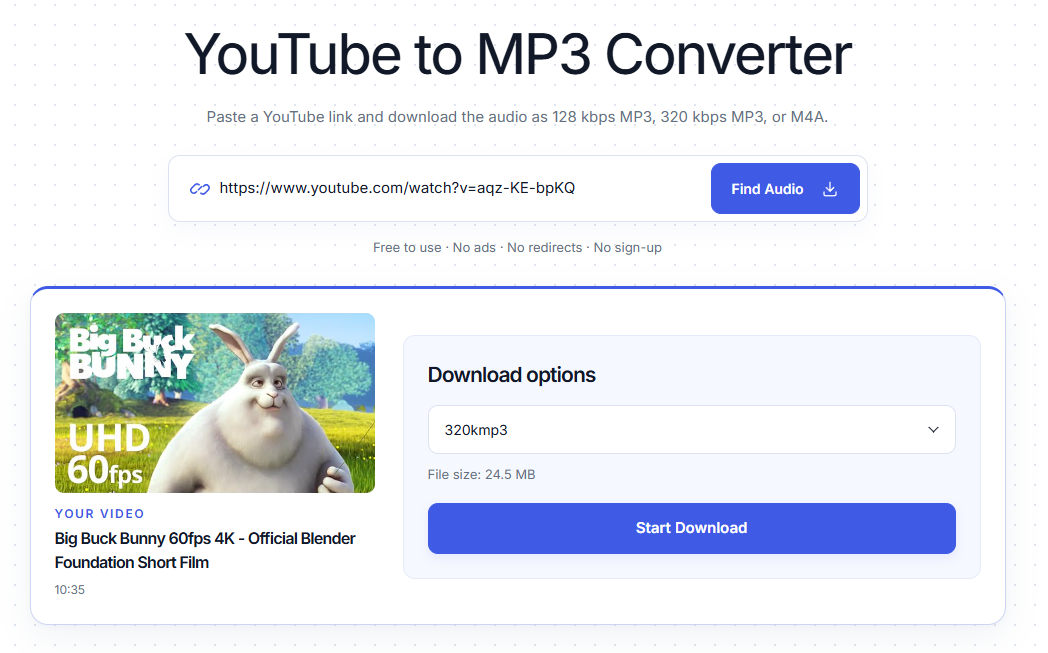
Example result: 320 kbps MP3 selected, with a displayed size of 24.5 MB. Your file may differ.
2. Select MP3 or M4A
Open the format selector and look for the Audio options. Choose MP3 at 128 or 320 kbps when offered. If you need an M4A file, choose that option instead. The shared selector may also include video options; select an audio option when you only want sound.
Check the displayed format and file size before continuing. Not every video necessarily offers every format. If a size is unavailable, that means the service has not supplied it; the file should not be treated as empty.
For speech and limited storage, consider 128 kbps. Choose 320 kbps for a higher-bitrate MP3 when file size matters less.
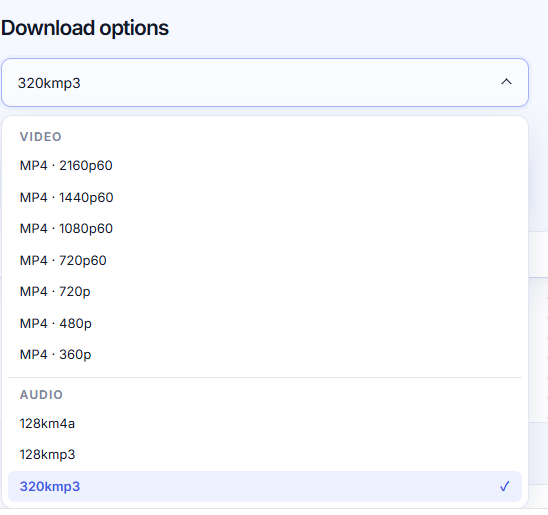
Choose from the Audio group: this example offers M4A, 128 kbps MP3, and 320 kbps MP3.
3. Prepare the audio, then save it
Select Start Download and keep the page open while the file is prepared. Preparation time depends on the video and service conditions. Follow the displayed status rather than assuming that every request finishes within a fixed number of seconds.
When Download File appears, select it to open the finished link and save the audio through your browser. Preparation and saving are separate actions: reaching the end of the preparation progress does not mean the file is already in your Downloads folder.
If you change formats or links, prepare the new selection before saving.
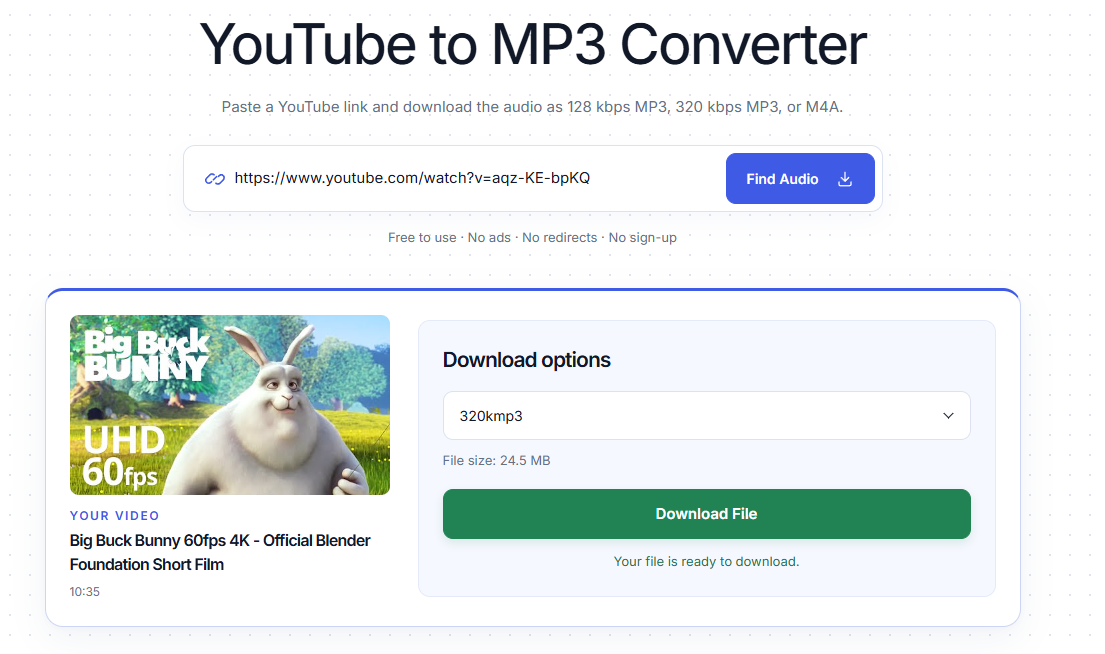
The audio is ready. Select Download File to save it through your browser.
Example video: Big Buck Bunny — Blender Foundation. See the project credits and license.
MP3 128 kbps, MP3 320 kbps, or M4A?
Choose the option that fits your listening needs, storage, and destination app. On a small screen, swipe the tables sideways to compare all columns.
| Audio option | When to consider it | Storage tradeoff | What to check |
|---|---|---|---|
| MP3 · 128 kbps | Lectures, interviews, and spoken audio when smaller files matter | About 0.96 MB per minute at constant bitrate | Listen to a representative section to check clarity |
| MP3 · 320 kbps | A higher-bitrate MP3 when file size is less important | About 2.4 MB per minute at constant bitrate | The source still limits the available detail |
| M4A | Your player or editing workflow asks for an .m4a file | Depends on the actual codec, bitrate, and duration | Confirm that your destination app supports the file |
The .mp3 or .m4a extension identifies the file type you are saving. Changing the filename from one extension to another does not convert its contents. If you need MP3, select an MP3 option and prepare a new file.
Do not assume that M4A automatically means original-quality audio or that it bypasses all conversion. The extension alone does not establish how the service processed the file. Compare the available options and use the format your player or workflow requires.
Does 320 kbps always sound better than 128 kbps?
320 kbps describes an output bitrate, not a promise of lossless sound. A higher output setting cannot recover details already missing from the recording or source audio. It also cannot remove background noise, clipping, or poor microphone placement.
MP3 uses lossy compression. Repeatedly exporting already compressed audio can introduce additional loss; Audacity's MP3 documentation explains both the size-versus-quality tradeoff and the effect of re-encoding. A bigger resulting file is not proof that the source became more detailed.
For a lecture, test whether speech is clear at 128 kbps before choosing a larger file. For music or more demanding listening, compare the offered settings using the same passage and headphones. Keep volume similar during the comparison: louder playback can make an option seem better even when it is not revealing more detail.
How large will the MP3 file be?
Duration and bitrate provide a useful storage estimate. The following figures assume constant bitrate and decimal megabytes, where 1 MB = 1,000,000 bytes. They describe MP3 audio data before small metadata or container overheads.
| Audio duration | MP3 at 128 kbps | MP3 at 320 kbps |
|---|---|---|
| 10 minutes | About 9.6 MB | About 24 MB |
| 30 minutes | About 28.8 MB | About 72 MB |
| 60 minutes | About 57.6 MB | About 144 MB |
For example, a one-hour talk at 128 kbps uses about 86.4 MB less audio data than the same duration at 320 kbps. That difference becomes useful when keeping several long talks on a phone.
You can estimate decimal MB with bitrate in kbps × duration in seconds ÷ 8,000. Actual downloads can differ because of variable bitrate, metadata, and the way your device reports storage units. Use a listed file size when available, and leave some free space beyond the estimate. M4A sizes cannot be inferred from the extension alone.
Find your audio and fix common problems
The file is ready, but I cannot find it
First, check that you selected Download File after preparation. Then open your browser's downloads list and inspect the file's status and save location. A transfer that is still running or failed has not produced a completed local file.
On a phone, check the browser's download controls and your device's Files or Downloads location. Exact menus vary by browser and operating system. If audio opens for playback, look for the browser's available save or download controls.
I received M4A instead of MP3
Check which option you selected. To obtain MP3, return to the selector, choose an available MP3 entry, and start a new preparation. Renaming an M4A file to .mp3 will not make it an MP3.
My preferred option is missing or conversion fails
Only choose from the formats returned for that video. If your preferred bitrate is missing, try another offered audio option. For an error, check the original video, copy its individual link again, and read the displayed message. Retry later if the service is temporarily unavailable; repeatedly submitting the same request does not guarantee success.
Frequently asked questions
Do I need an account or an installed app?
No. The public converter works online without a YTAIKit account, software installation, or AI credits. A verification step may still appear before analysis.
Can I convert a YouTube Short to audio?
Paste the individual Shorts link and check whether audio options are returned. The available formats depend on that video; a successful result for another link does not guarantee the same choices.
Will the audio include subtitles?
An audio download does not automatically include a separate transcript. If you need text to study alongside the recording, use the YouTube transcript tool to check for existing captions.
Only download content you own or have permission to save, and follow the applicable license and platform terms.
Ready to save your audio? Open the free YTAIKit YouTube to MP3 converter, paste your link, and select the available format that fits your listening needs.