
GUIDE / VIDEO LEARNING
Best YouTube Video Downloader in 2026: YTAIKit
A practical guide to free, ad-free YouTube downloads: choose an available HD format, compare download methods, and save your file without installing an app or creating an account.
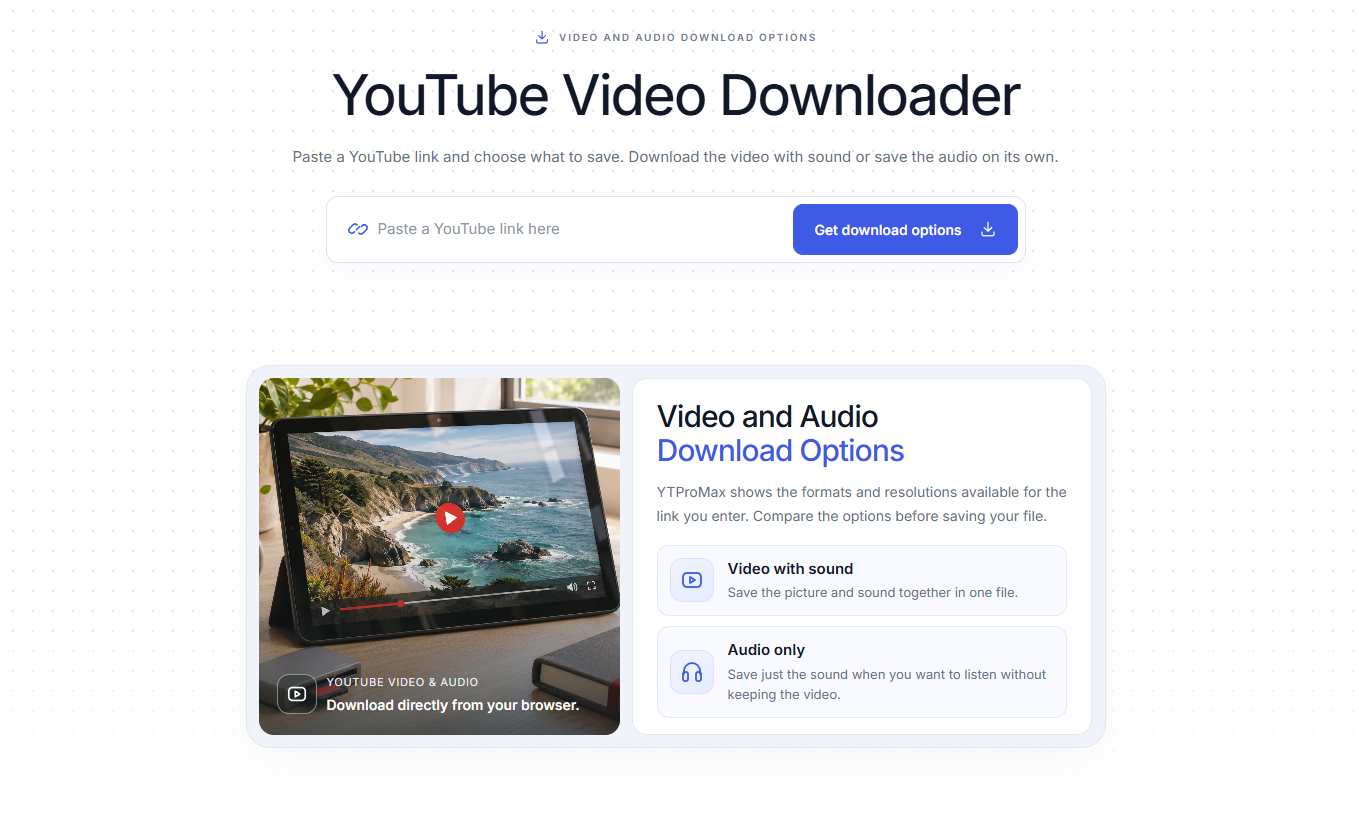
Looking for the best YouTube video downloader in 2026? If your priority is a free online tool with no ads, no installation, and no sign-up, YTAIKit is a practical place to start. Paste a YouTube link, inspect the available video or audio options, and save the finished file through your browser.
The key qualification: 1080p, 2K, and 4K downloads depend on the source video and the formats returned for your link. YTAIKit does not turn a lower-resolution upload into native 4K.
Why choose YTAIKit for online video downloads?
YTAIKit is an online YouTube downloader that works directly in your browser, with no software or extension to install:
- Free downloads: the public downloader does not require payment or spend AI credits.
- No ads on the downloader page: focus on the link field, format selector, and download controls.
- No registration: you can use the download page without signing in to YTAIKit.
- No installation: the workflow runs in your browser without a dedicated app or extension.
- A choice before saving: compare available video resolutions, audio formats, and file sizes when provided.
There can still be a verification step before analysis. No sign-up does not mean every link produces an instant file: analysis and preparation take time, and some videos cannot be processed. Choose YTAIKit for convenient browser access, rather than a promise of unlimited availability or a guaranteed download speed.
How to download a YouTube video with YTAIKit
Select a screenshot to view it at full size.
1. Copy and paste the video link
Open the YouTube video you are allowed to save. Copy its address, or use YouTube's Share control to copy the link. Visit the YouTube video downloader and paste it into the video link field.
Select Get download options. Complete the verification if prompted, and wait for analysis. The results appear on the same page; you do not need to open the AI workspace.
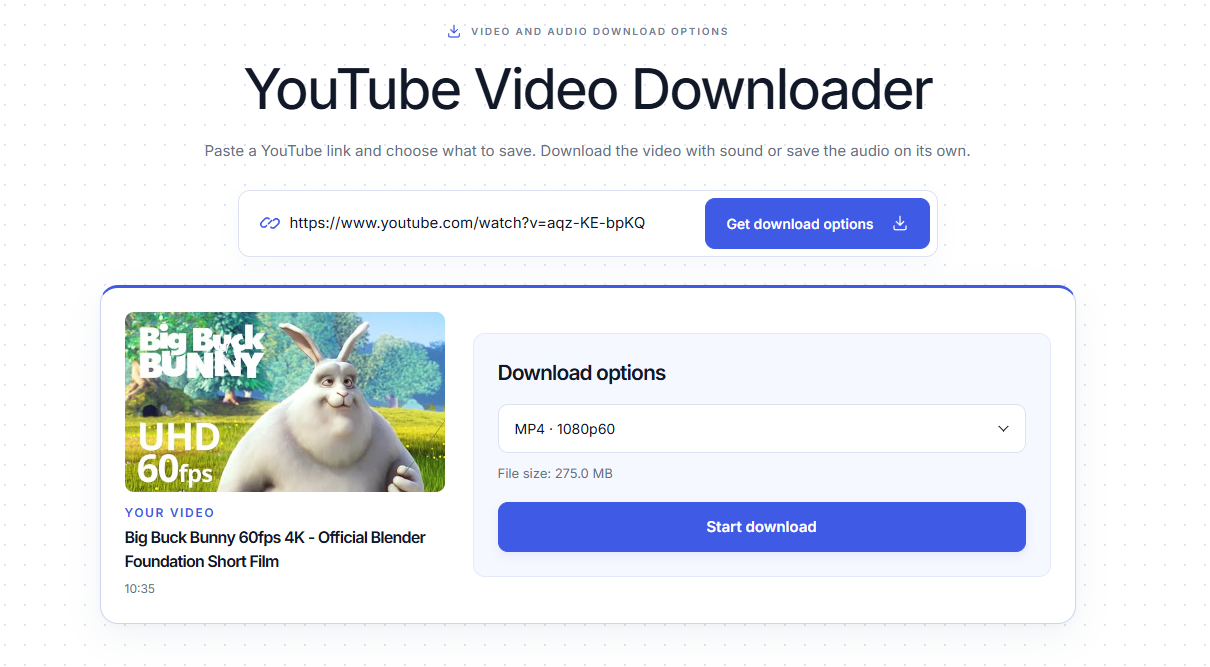
After analysis: this example shows MP4 1080p60 at 275.0 MB. Your video's options and size may differ.
Check that you copied a specific video link. A channel homepage or search results address does not identify the video you want to download. Standard watch links, shortened youtu.be links, and supported Shorts links can identify individual videos.
2. Check the result and choose a format
Once analysis succeeds, check the displayed title and thumbnail before continuing. Open the Resolution / Format / File size selector and choose a video option for picture and sound, or an audio option for listening only.
Look at the actual extension and quality shown for that option. Do not assume every video has MP4, MP3, or 4K available. If a file size is shown, compare it with the free space on your device. A missing size means the service has not supplied that information, not that the file is empty.
The default normally favors the highest available video resolution at or below 1080p, with a preference for a higher frame rate at the same resolution. You can manually choose a higher resolution when offered.
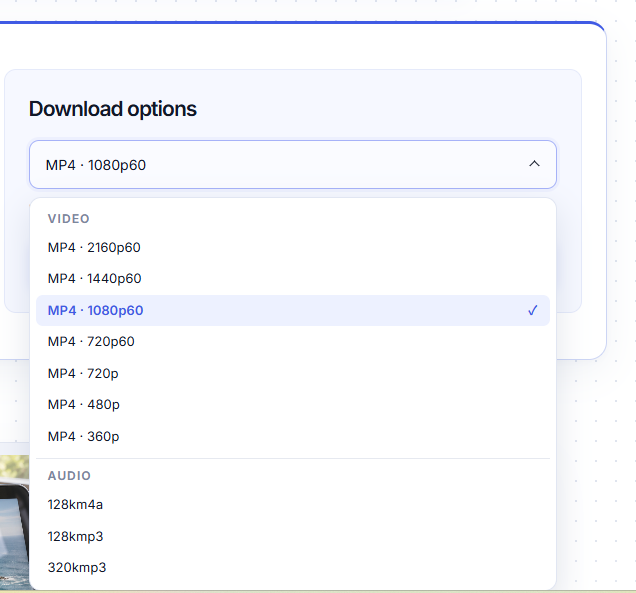
Open the selector to compare formats. This example includes 2160p60 (4K) and 1440p60 (QHD).
3. Prepare the file, then save it
Select Start download and keep the page open while the file is prepared. Follow the progress shown in the button. Some requests show a waiting animation instead of a percentage when progress information is unavailable.
When preparation succeeds, select Download file. This opens the finished file link in a new tab so your browser can save it. Check your browser's downloads list or your device's Downloads folder afterward.
Start download prepares the file; Download file gives you the finished file link. A progress value of 100% alone does not mean the video has already been saved to your device. Wait for the final link rather than closing the page early.
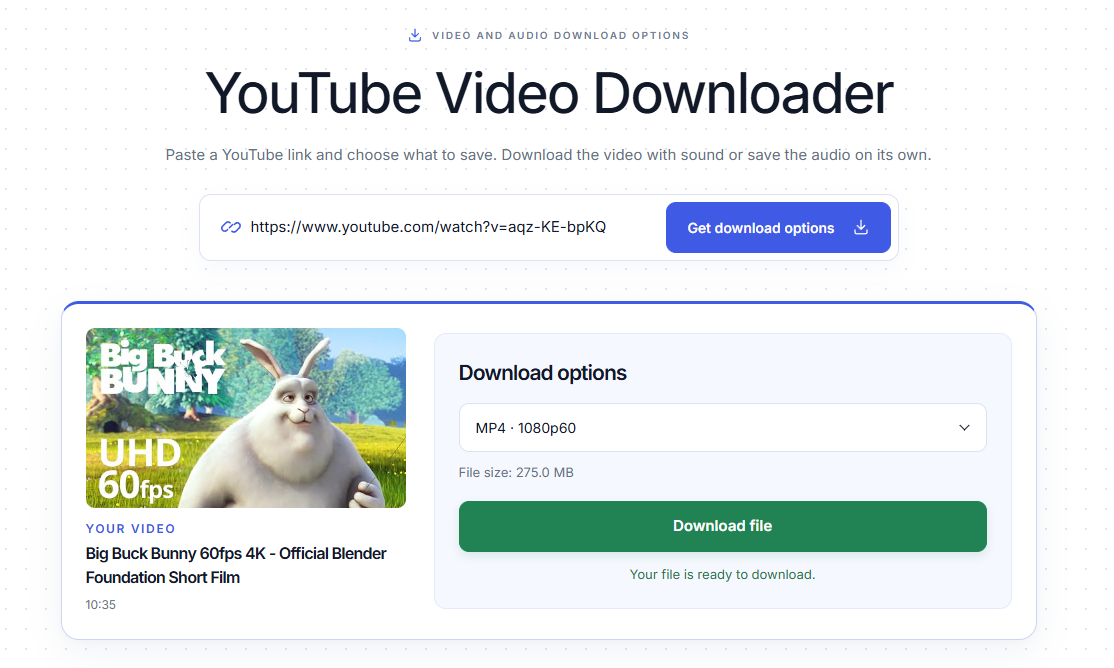
The file is ready: select Download file to save it through your browser.
Example video: Big Buck Bunny — Blender Foundation. See the project credits and license.
1080p, 2K, or 4K: which quality should you choose?
Choose quality for the screen and purpose you actually have. The largest available resolution is not always the most useful file to carry on your phone.
On smaller screens, swipe the tables sideways to compare every column.
| Download label | Typical landscape dimensions | A useful choice for | Storage and transfer tradeoff |
|---|---|---|---|
| 1080p / Full HD | 1920 × 1080 | Everyday laptop viewing, tutorials, and sharing permitted copies | Usually a practical balance of detail and file size |
| 2K / 1440p / QHD | 2560 × 1440 | A higher-resolution monitor or material with fine visual detail | Often larger than a comparable 1080p version |
| 4K / 2160p / UHD | 3840 × 2160 | A 4K display or an authorized workflow needing more detail | Usually needs more storage and transfer time |
Here, 2K means the 1440p/QHD option often called 2K by download tools. Strict cinema terminology uses 2K differently. The dimensions above describe common 16:9 landscape video; portrait Shorts and other aspect ratios can have different dimensions.
Resolution is only part of quality. Frame rate, compression, codec, and the original upload also affect the result. A larger pixel count cannot restore details that were never present in the source. Compare the actual format labels and listed sizes instead of relying on resolution alone.
For an ordinary laptop tutorial, start with 1080p. For a detailed demonstration on a QHD screen, consider 1440p. For a native 4K source viewed on a large 4K screen, choose 2160p if the parser offers it and your device can play it.
YTAIKit vs official offline viewing vs desktop tools
There are different reasons to download a video. Saving a portable file, keeping playback inside YouTube, and building a configurable local workflow are different tasks.
| Question | YTAIKit online downloader | YouTube Premium offline viewing | Desktop workflow: yt-dlp |
|---|---|---|---|
| Cost model | Free public downloader; no AI credits needed | Paid membership; availability varies by location | Free, open-source software |
| Account requirement | No YTAIKit account required | Sign in with the eligible Premium account | No separate yt-dlp account; some sources require authentication |
| Local software | Browser; no dedicated app or extension | Supported desktop browser or YouTube mobile app | Local executable or installation; dependencies may be needed |
| Saved result | A file link for saving through the browser | Offline playback within YouTube | Local media files according to selected options |
| Quality choices | Formats returned for the individual link | Available settings for the video and supported device | Source formats and chosen settings |
| Best fit | Online downloads directly in your browser, with no installation required | Official offline watching inside YouTube | Users who want command-line control and repeatable workflows |
YouTube's official Premium download instructions describe signing in, downloading eligible videos, selecting quality, and returning to Downloads for playback. Its offline viewing FAQ explains that downloads stay encrypted for playback within YouTube. Choose this approach for official offline viewing.
The official yt-dlp documentation describes local binaries, format selection, and dependencies such as FFmpeg for merging separate video and audio streams. It offers more control, with more setup and maintenance. Those characteristics apply to yt-dlp; desktop downloaders as a whole do not share one pricing or feature model.
Choose YTAIKit when you want to paste a link and compare visible options without managing local download software.
Common download problems and what to do
| What you see | What it can mean | What to try |
|---|---|---|
| No 4K option | The source or parser has not supplied a downloadable 2160p format | Choose a listed resolution; confirm the original video's quality options |
| 1080p selected by default | The default balances quality with file size | Open the selector and manually choose a higher option if offered |
| Progress reaches 100%, but no file is saved | Preparation has not yet returned the finished link | Keep the page open and wait for Download file |
| The file is too large | High resolution, frame rate, or video length increases storage needs | Choose a smaller listed option or audio only when appropriate |
| The file will not play | Your player may not support that file's container or codec | Try an available format your device supports; check the actual extension |
| Analysis or preparation fails | The link, video availability, or upstream service may be the problem | Check the URL, read the error, and retry later if appropriate |
Avoid starting multiple identical requests while one is still preparing. If you change the selected format or analyze a different link, the previous finished link is cleared from the download controls. Prepare the newly selected option before trying to save it.
Frequently asked questions
Is YTAIKit really free and ad-free?
The current public downloader is free, displays no advertising, and does not consume AI credits. The download controls work without a YTAIKit account. This describes the current service, rather than a promise about all future versions.
Can I use it on a phone?
You can open the responsive download page in a mobile browser without installing a YTAIKit app. File handling depends on your browser and operating system. If the file opens for playback, use the browser's available save controls and check the Files or Downloads location.
Can I download YouTube Shorts?
Use the YouTube Shorts downloader and paste the individual Shorts link. Available quality still depends on that video and the returned download options.
Can I save audio instead of video?
Yes. Choose an available audio option after analysis, or start from YouTube to MP3. Check the extension shown: the page name does not guarantee that every source offers an MP3 file.
Is every video available in 4K?
No. Available formats depend on your link. Downloading cannot turn a 1080p upload into native 4K.
Only download content you own or have permission to save, and follow the applicable license and platform terms.
Ready to choose a file? Open YTAIKit's free YouTube video downloader, paste your link, and compare the available options before saving.